
Before you begin
1) To use the BlackVue Cloud feature, please prepare and use the BlackVue CM100GLTE module.The BlackVue CM100GLTE module is available for purchase at the BlackVue Store.
2) If you do not have the BlackVue CM100GLTE module, please check if there is an available hotspot nearby. Then, connect to the hotspot using.
3) Please refer to the instructions below on how to connect to BlackVue Cloud using the CM100G LTE module or a nearby hotspot.
Connect to BlackVue Cloud
1) After registering the dashcam in the BlackVue app, tap the ‘Add BlackVue Cloud Features’ option on the app Screen.
2) Tap ‘Connect to camera’, then tap ‘Join‘ on the popup window.
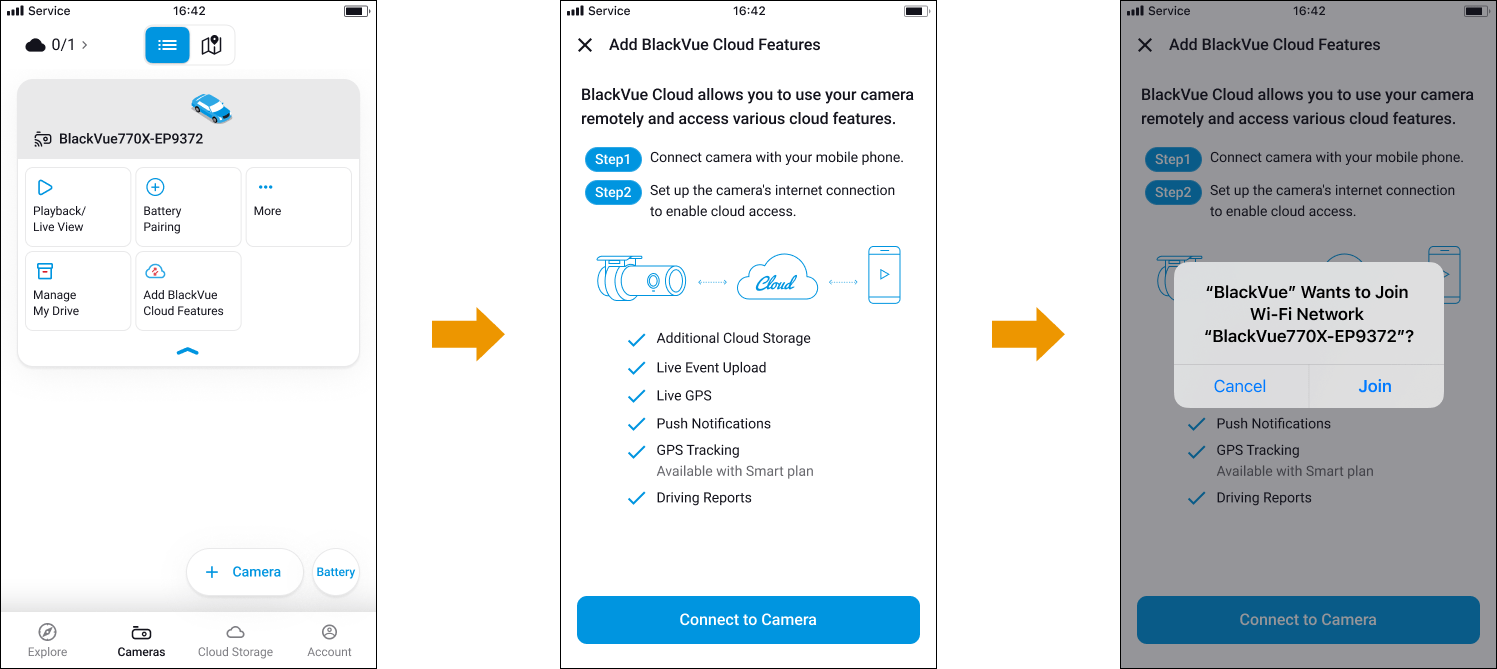
3) The app will automatically proceed with ‘Preparing cloud connection’ and this step might take a little while, so we kindly ask for your patience.
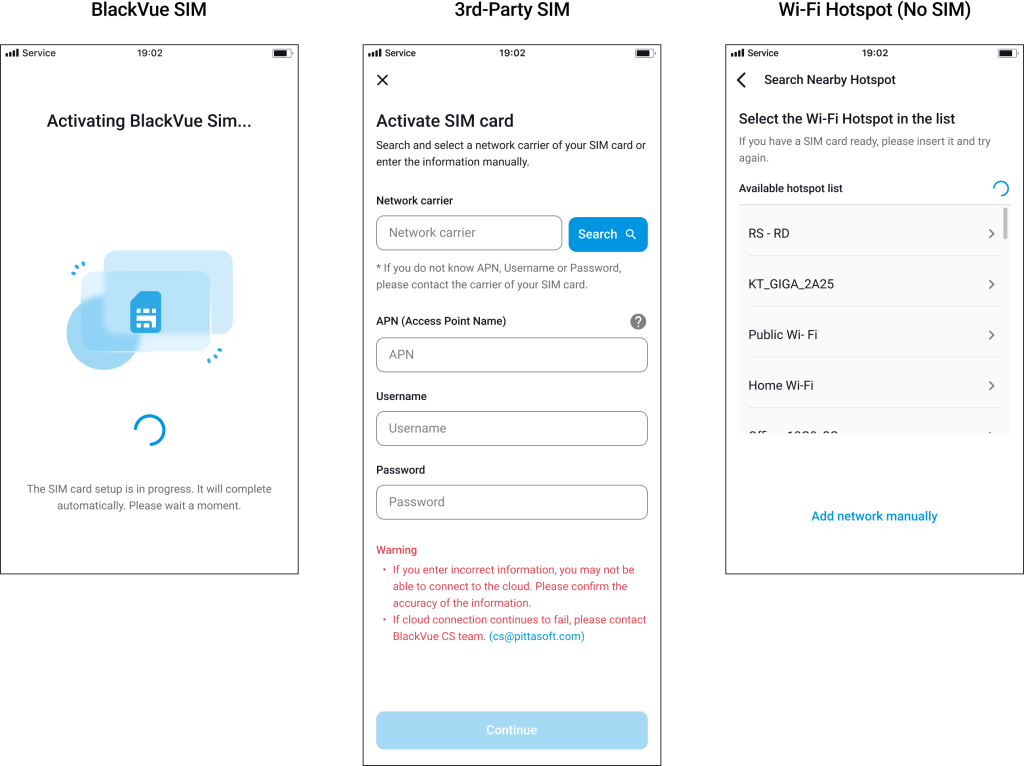
💡Tips
-Case 1: When using the BlackVue SIM card, the dashcam automatically detects and connects.
-Case 2: When using a Third-party SIM card, You inquire about the APN(Access Point Name / Username / Password) settings with the SIM provider and enter them into the app .
-Case 3: If neither a BlackVue SIM nor a third-party SIM is available, you can connect to a nearby hotspot to use the service.
4) When the popup message ‘Allow the BlackVue app to access your dashcam’s GPS data?’ appears, tap ‘Allow’ or ‘Don’t Allow’ based on your personal circumstances.
If you select ‘Don’t Allow‘, the BlackVue app will not be able to track your vehicle’s location and speed.

5) After completing the BlackVue Cloud configuration, you will see an overview of the available subscription plans.
If you wish to subscribe or upgrade, you can do so from the Cloud Subscription menu at the top left of the Camera List screen.


