
Keep your dashcam up to date for the best performance and latest features.
Firmware updates are available at www.blackvue.com > Support >Firmware Download.
Your settings will stay just the way you left them.
🔹 Upgrading the firmware using an iOS or Android device
1) Open the BlackVue app
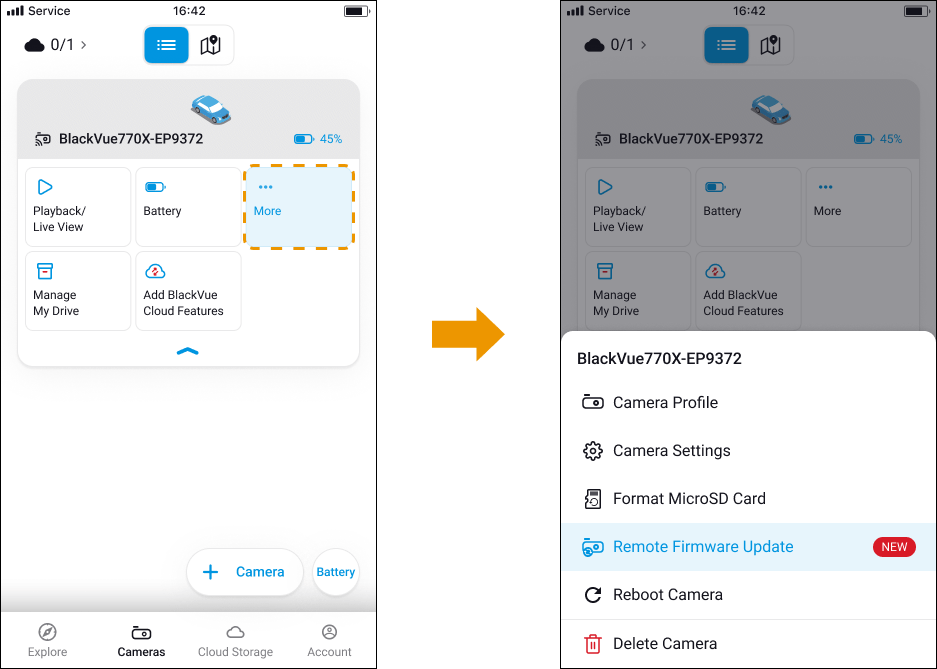
2) Tap the Morebutton at the top of the camera card you want to update.

3) Tap on Remote Firmware Update.
4) Check the firmware version, release notes, and tap ‘Firmware Update’ to start downloading.
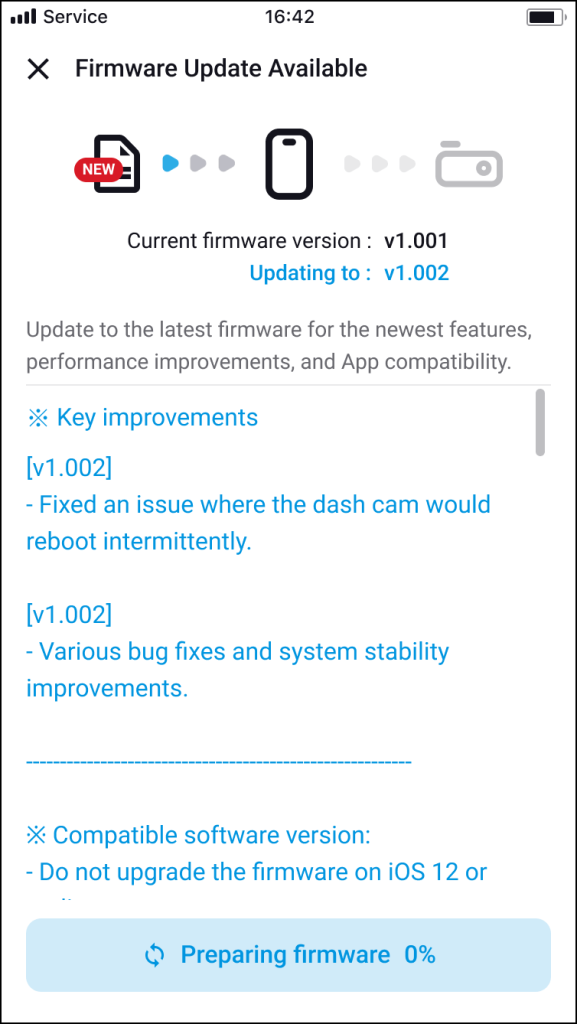
5) After download completes, tap firmware update to apply the firmware upgrade. Make sure your BlackVue dashcam is on and nearby.
6) Tap ‘Update Firmware‘ in the app and send the upgraded firmware from your phone to the dashcam as instructed.
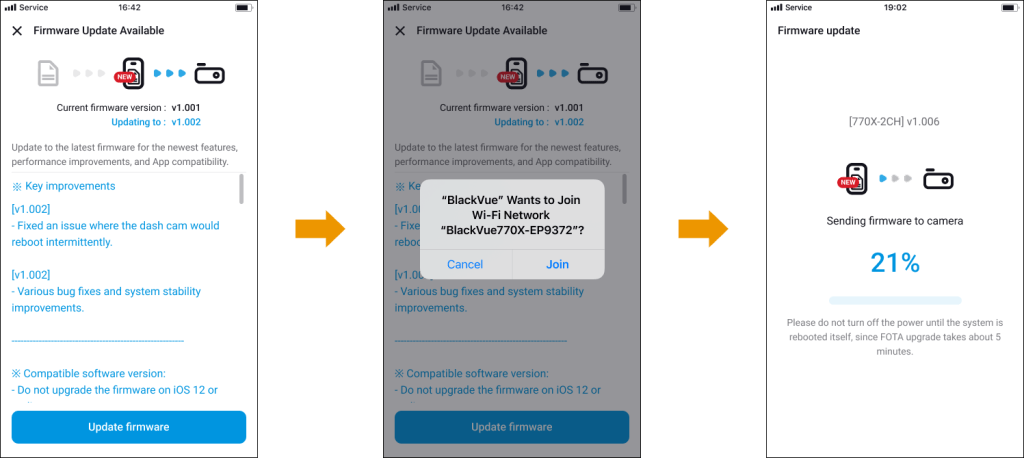
7) In the pop-up window, tap ‘Join’ to transfer the firmware to the dashcam. This process may take some time. Please wait patiently.
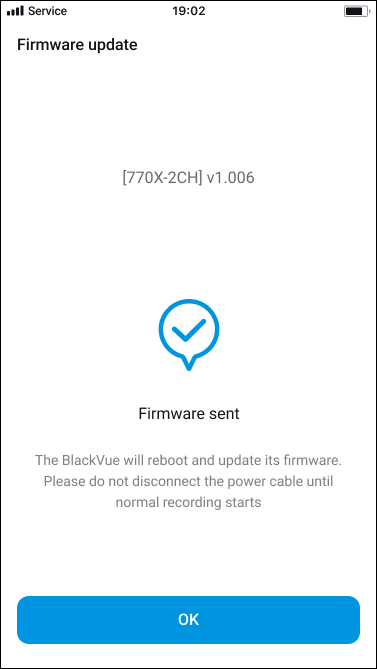
8) When you see the message ‘Firmware sent’ on the screen, tap “OK” at the bottom to complete the upgrade.
⚠️Caution
Please make sure the dashcam is powered on until normal recording starts after the upgrade is complete. Any power interruption may prevent the firmware upgrade from completing, resulting in malfunction of the dashcams.
🔹 Upgrading the firmware using computer(Windows / macOS)
Keep your BlackVue dashcam running at its best with the firmware. Visit www.blackvue.com to check for the newest firmware available for your model and enjoy improved features and performance.
1) Format the micro SD card.
1) Insert the microSD card to a computer.
2) Launch BlackVue viewer.
3) Select the SD card viewer and click on the About( )…button and check your firmware version.

*For Mac User, click and select BlackVue from the menu.

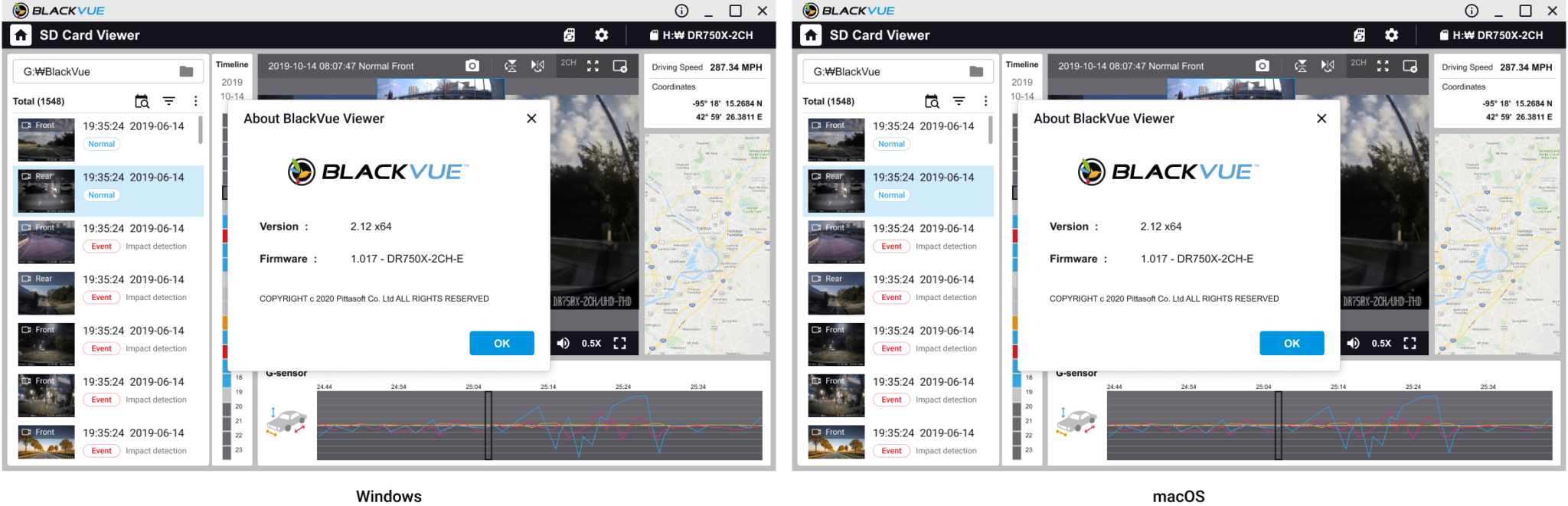
5) Go to the Blackvue website(www.blackvue.com > Support > Firmware Download) and download the latest firmware for your BlackVue dashcam model in zip format.
6) Unzip the downloaded file and copy the BlackVue folder to the microSD card.

7) Insert the microSD card into the dashcam and connect the power to initiate the firmware upgrade. Make sure the power remains on until the upgrade is completed. Any power interruption may prevent the firmware upgrade from completing, resulting in malfunction.
📌 Note:
*Do not insert or remove the microSD card when the dashcam is turned on. Doing so may damage the data and cause a malfunction of the microSD card.
*Your saved settings are not affected by firmware upgrade.
*The firmware is upgraded to the previously saved language.


