
The following diagrams explain each part of the BlackVue dashcam.
Front camera #
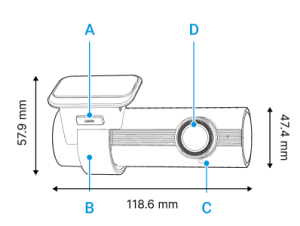
A) Lock button
B) Mounting bracket
C) Front security LED:
 : Lights on during (i) normal mode, (ii) an event is being recorded (impact detected), (iii) manual recording has started, or (iv) motion is detected in parking mode.
 : Blinks slowly during parking mode motion detection standby.
D) Camera lens
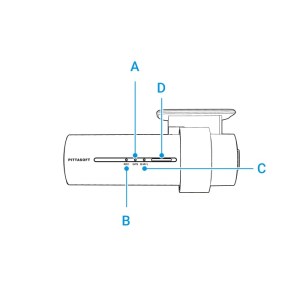
A) GPS LED
 : Lights blue when GPS is on.
 : Blinks blue quickly when GPS is turning off.
B) Recording LED:
 : Lights orange in normal mode.
 : Lights red when (i) an event is being recorded (impact detected), or (ii) manual recording has started.
 : Lights green in parking mode when motion is detected.
C) B/W/L (Bluetooth/ Wi-Fi/ LTE LED):
 : Lights yellow when LTE is connected.
: Lights white when Wi-Fi is connected.
 : Blinks Yellow slowly when Bluetooth is paired.
 : Blinks Yellow quickly when Bluetooth is in pairing mode.
D) Speaker
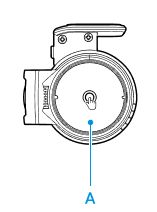
A) Touch Sensor
Press the sensor to trigger a manual recording.
*Touch sensor can be turned on/off in the firmware settings.
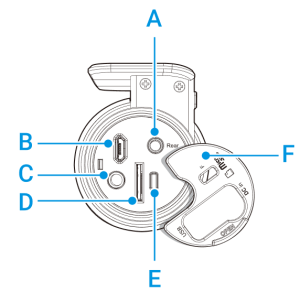
A) Rear camera connection port
B) Micro USB port
C) DC in (power connector)
D) MicroSD card slot
E) Format button
Press and hold for 5 seconds, and after a beep, release the button.
Then, press again and hold for 5 seconds and release the button after a beep to format the microSD card.
F) Cover
Removing and inserting the front camera #
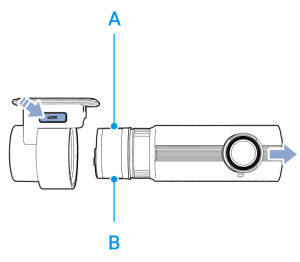
A) Connectivity details label: Default Wi-Fi SSID / Default Wi-Fi password / QR code
B) Serial number label
• To remove the dashcam from its bracket, press the LOCK button and pull the dashcam out of the mounting bracket.
• To insert the dashcam into its bracket, push the dashcam into the mounting bracket until it “clicks” in.
Rear camera #
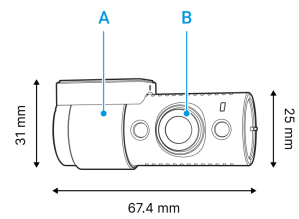
A) Mounting bracket
B) Camera lens
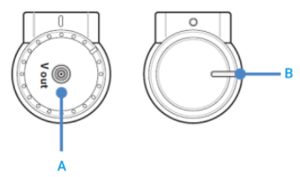
A) V out (Front camera connection port)
B) Rear security LED
: Stays on in all recordings modes but can be turned off from firmware settings.
#
Removing and inserting the rear camera #
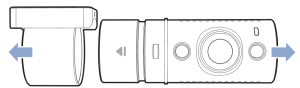
• To remove the rear camera from its bracket, hold the mounting bracket and pull the rear camera out.
• To insert the rear camera into its bracket, push the rear camera into the mounting bracket until it “clicks” in.


