
Check the Battery Status and Change Settings
1.Power on the Ultra Battery B-130A.
2.Go to your smartphone’s Settings and turn on Bluetooth.
3.Search for the BlackVue app in the Google Play Store or Apple App Store and install it on your smartphone.
A.Connecting the Ultra Battery to the BlackVue app.
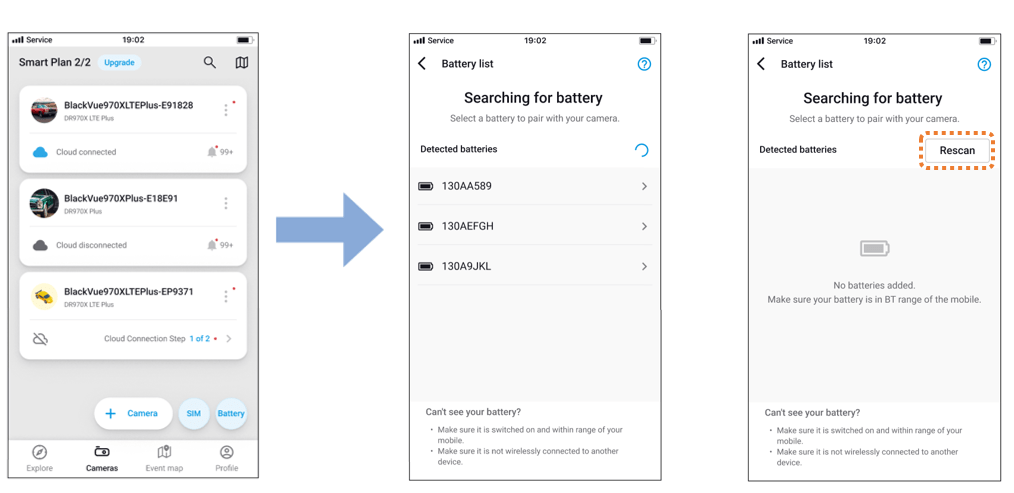
a.Open the BlackVue app and tap on ‘BlackVue Battery’.
b.Select your Ultra Battery from the list. If your Ultra Battery is not shown in 15-20 seconds, the Rescan button will appear. Tap it to refresh the list.
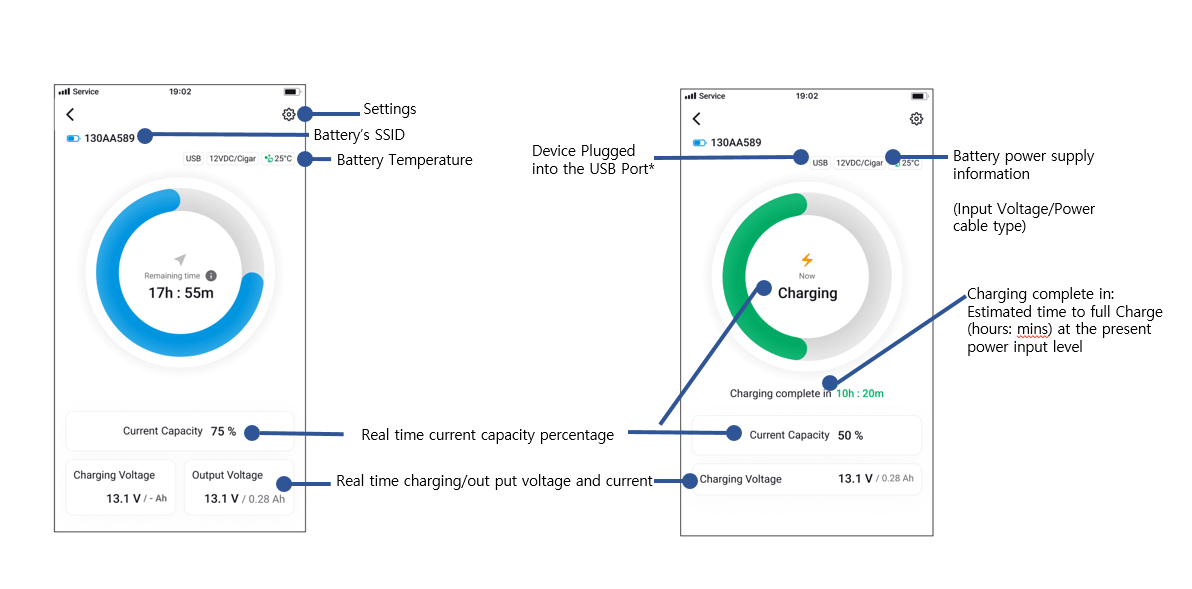
c.Battery information screen
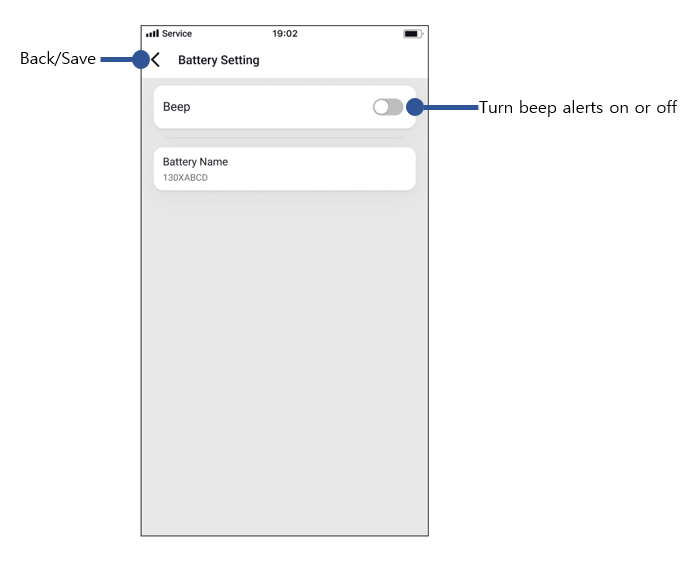
d.Battery setting screen
 Caution
* Under extreme temperature conditions, the efficiency of the Ultra Battery’s cell may decrease. However, this condition is temporary. Once the battery’s temperature returns to its normal operating range,
its efficiency will return to normal as well.
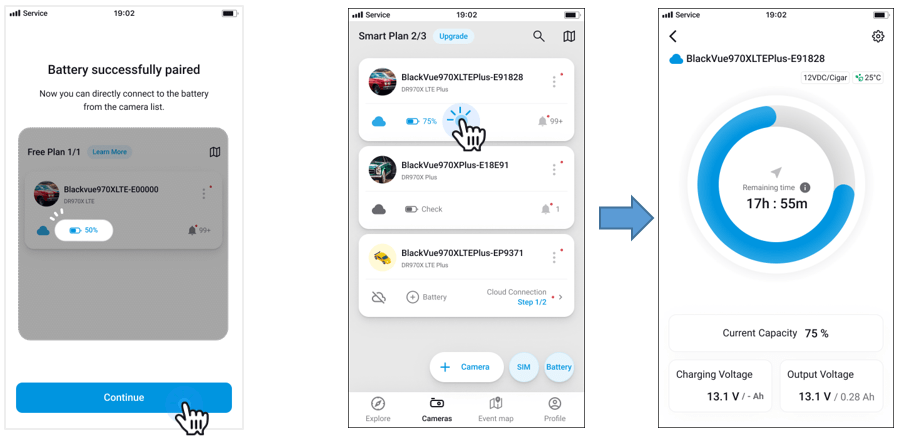
B.Connecting the Ultra Battery to the BlackVue App(Dashcam User Only).
1.Power on the Ultra Battery B-130A.
2.Go to your smartphone’s Settings and turn on Bluetooth.
3.Search for the BlackVue app in the Google Play Store or Apple App Store and install it on your smartphone.
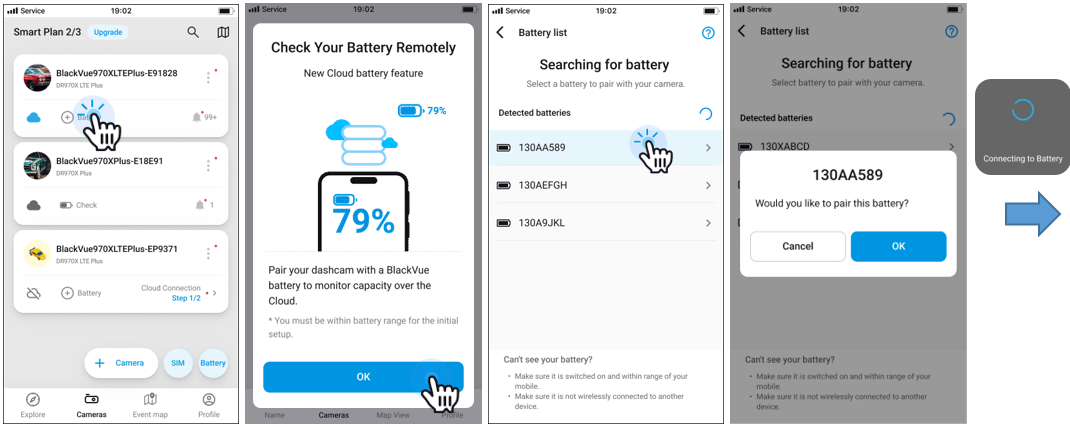
4.Open the BlackVue app and tap on ‘BlackVue Battery’ below the Dashcam what you using.
5.Select your Ultra Battery from the list.If your Ultra Battery is not shown, refresh the list.
– A sticker with the unique Bluetooth ID is arrached to each Ultra Battery.
 Note
Note
*All images shown are for illustration purposes only. The actual app may differ from the image shown.
*The ‘BlackVue Battery App’ does not support the B-130A Ultra battery. Please refer to this when purchasing the product.


