
Opening video files #
1. Search for the BlackVue app in the Google Play Store or Apple App Store and install it on your smartphone.
2. “Pair” your smartphone with the BlackVue dashcam via BlackVue app
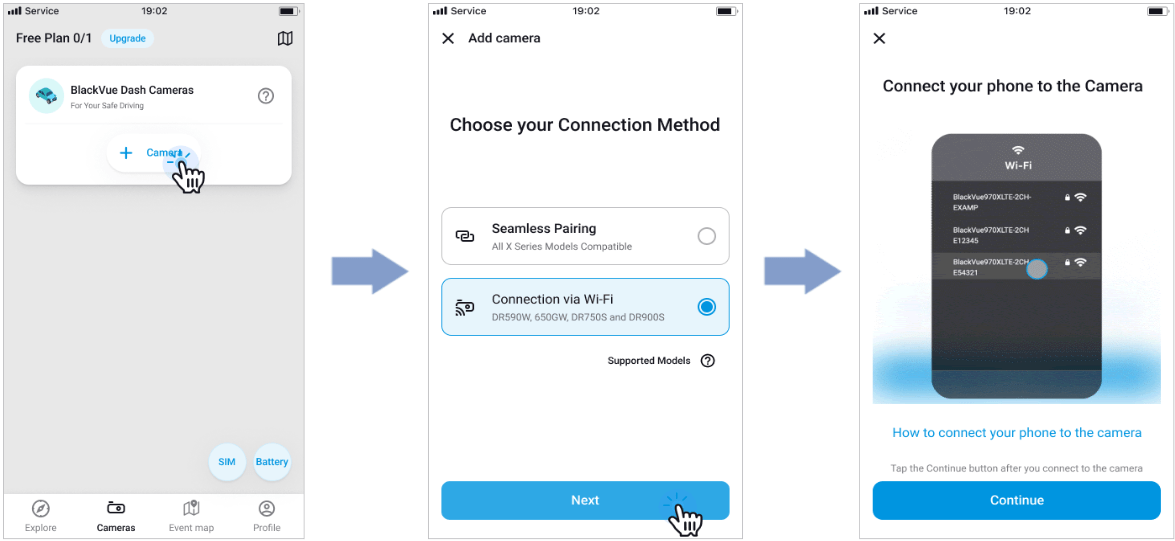
a. Open the BlackVue App and select “Add Camera.” Press the Wi-Fi button once to turn on Wi-Fi.
b. Select “Connection via Wi-Fi,” then press “Next.”
c. Choose your BlackVue dashcam from the network list. The dashcam’s default SSID begins with its model number. (e.g. BlackVue590XPlus-******)
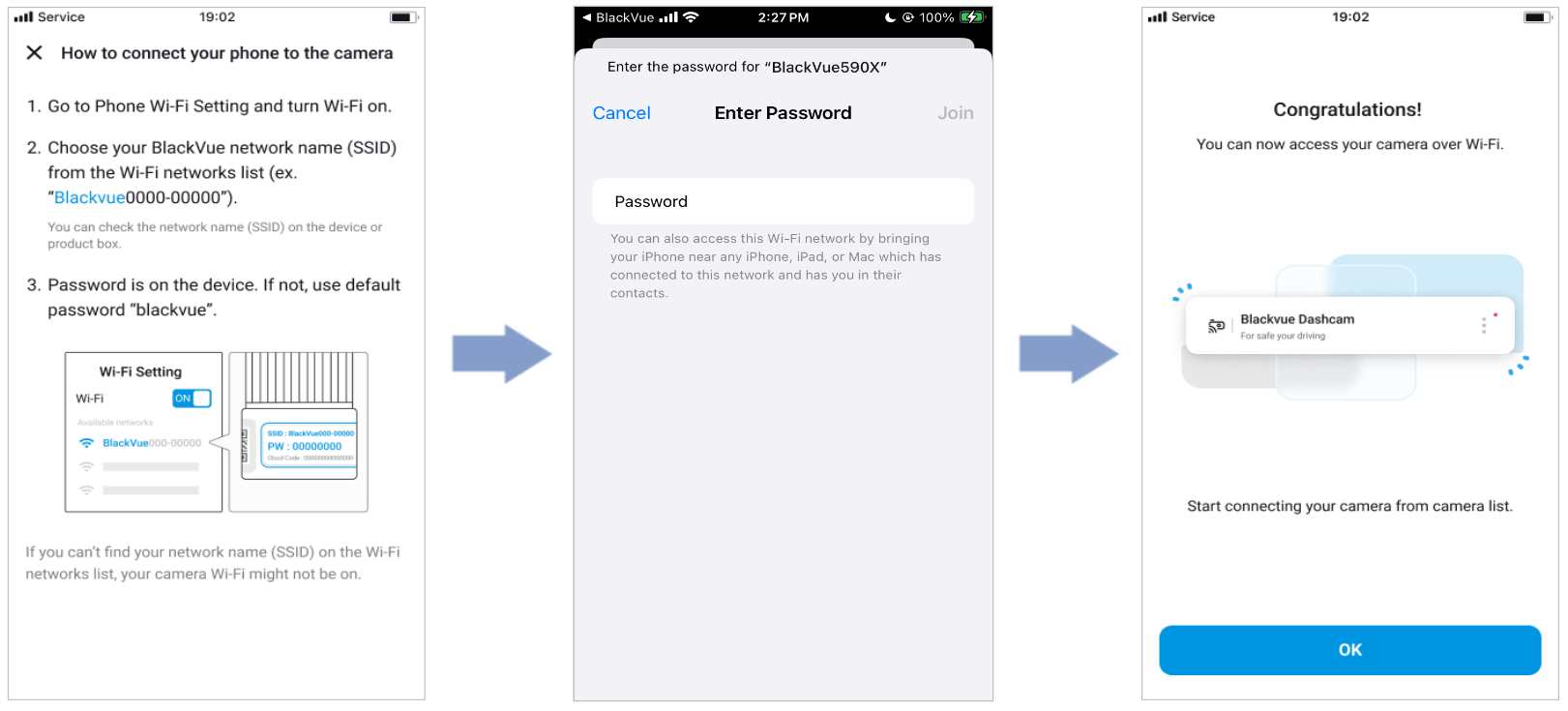
d. Enter the password and tap join.
* The default Wi-Fi SSID and password is labeled on the dashcam. To find them, unplug the cables and remove the front camera from its mount.
 Note
Note
• Wi-Fi Direct lets you directly connect your smartphone to your dashcam via Wi-Fi within a range of 10m.
• The BlackVue app is available for devices running Android 5.0 and higher, or iOS 9.0 and higher.
• You can change Wi-Fi SSID and password as described on CHANGING / RESETTING WI-FI DIRECT SSID AND PASSWORD
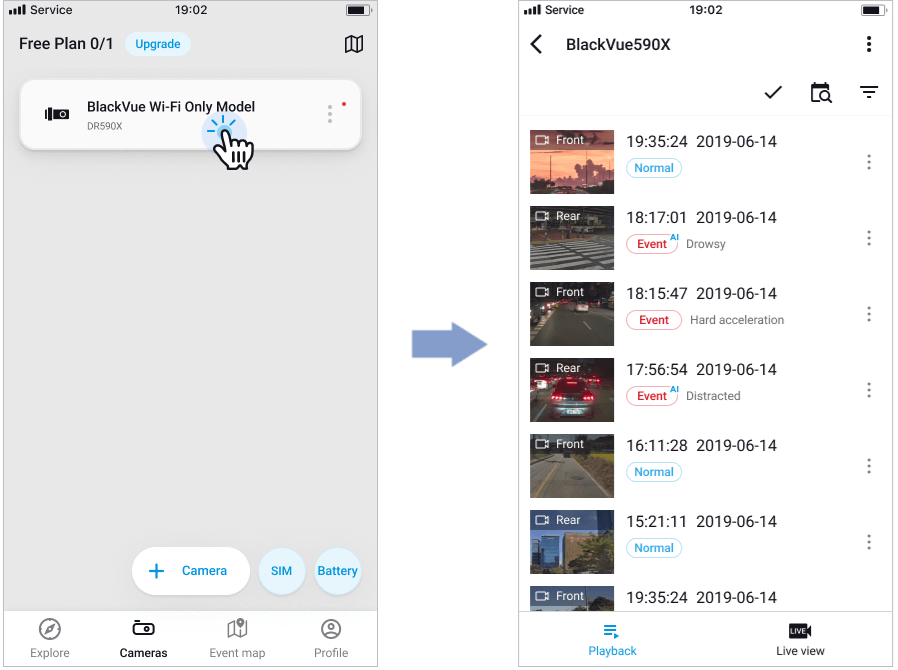
Wi-Fi screen composition #
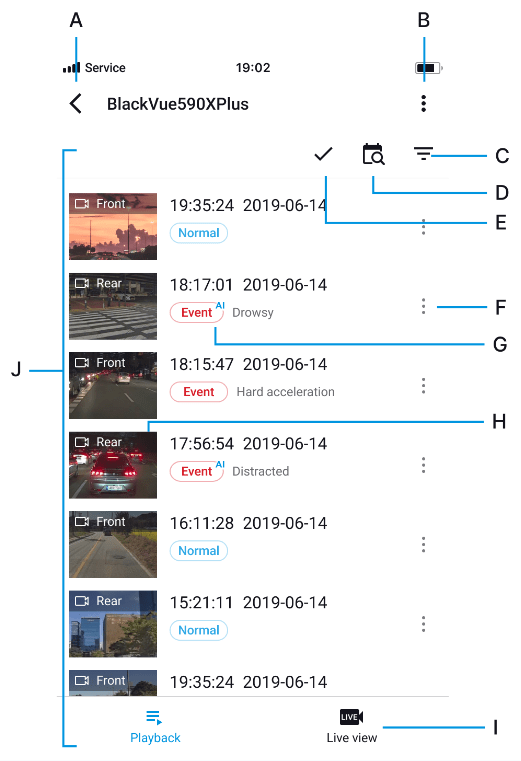
A) Return
B) Dashcam menu
C) File type Filter
D) Date Filter
E) Multi selection
F) Video file menu
G) File Type
H) Video Source
I) Live view
J) Video list
Note
• All images shown are for illustration purpose only. Actual app may differ from images shown.
Playing video #
Playing back videos #
Select the video file you want to play from the video list.
Scroll up/down the screen to refresh the video list.
Identify video files by recording type #
 |
Normal | The dashcam records in normal mode by default. |
 |
Event | When the dashcam detects an impact while in normal or parking mode, it switches to event mode and saves an event recording beginning 5 seconds before the event trigger. Exceeding the set speed limit will also trigger an event recording. |
 |
Parking | In parking mode the dashcam continuously buffers video. When motion is detected in the dashcam’s field of view, it saves a parking recording beginning 5 seconds before the motion detection. |
Note
• The dashcam requires a constant power source to record in parking mode. See “Optional accessories“ for more information.
Checking the displayed time #
The time the video was recorded is displayed in the lower left corner of the video in the playback screen. If the displayed time in the recorded videos is incorrect please see “Time settings” for more information.
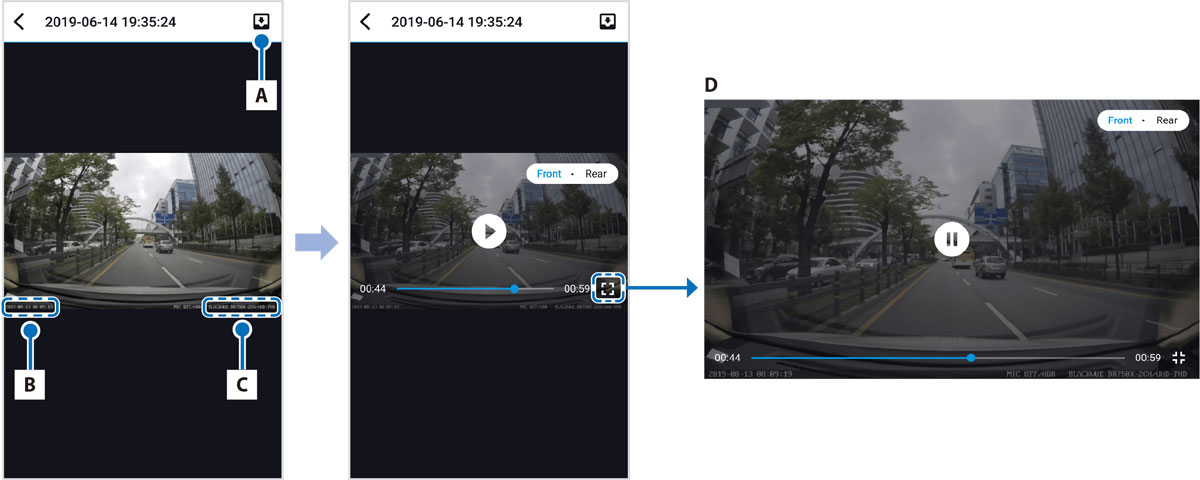
A) Download to Internal Memory
B) Date, Time & Speed
C) Model name
D) Landscapes View
The vehicle’s speed is displayed in the lower-left corner of the video.
1. Tap the screen to playback the video.
2. Rotate your smartphone to switch between portrait and landscape display modes.
3. You can switch the dashcam view by pressing the Front/Rear button.
Real-time streaming video (Live View) #
You can view in real-time the video currently being recorded by connecting your smartphone to the dashcam via Wi-Fi Direct.

1. Connect the registered Wi-Fi dashcam and tap the  button.
2. Rotate your smartphone to switch between portrait and landscape display modes.
3. You can switch the dashcam view by pressing the Front/Rear button.
Note
• When watching Live View via Wi-Fi Direct, map data isn’t displayed because your smartphone can’t access internet as long as it is connected to dashcam’s Wi-Fi.
Managing videos #
Managing videos in Wi-Fi #
You can manage the recorded videos using the BlackVue app.
Note
• When the microSD card fills up, the newest video files will start to replace the oldest video files (called loop recording) – so you will always have the most recent video files.
#
Managing videos in INTERNAL MEMORY #
Open the BlackVue app and select INTERNAL MEMORY.
Tap to see file options. tap  and select download to your smartphone.


